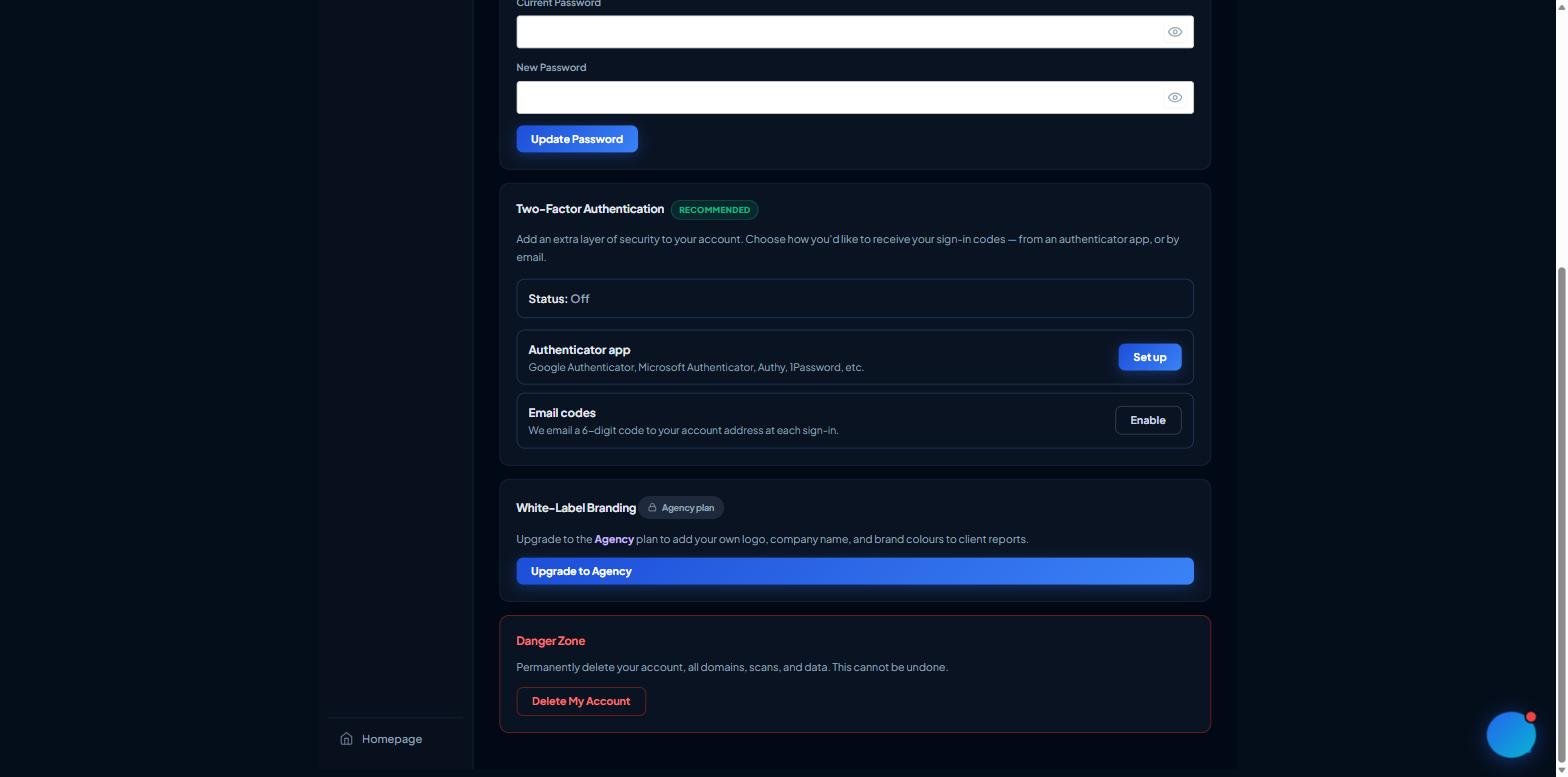
Two-factor authentication (2FA) means your password alone isn't enough to sign in — a one-time code is also required. You can choose an authenticator app or email codes.
Open your Dashboard and go to Settings, then the Two-Factor Authentication card.
Pick a method:
Authenticator app (recommended)
Click Set up next to Authenticator app.
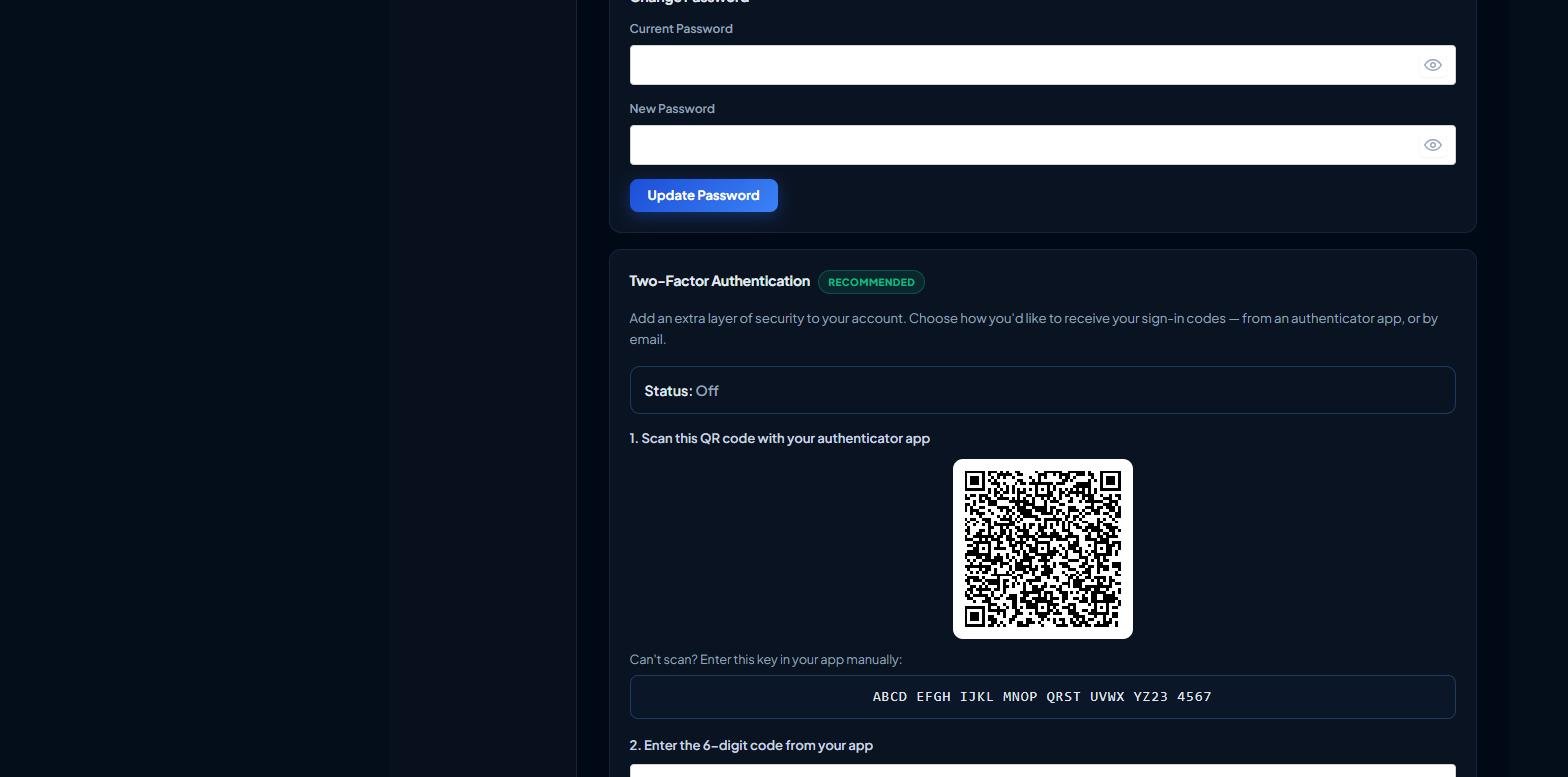
In Google Authenticator, Microsoft Authenticator, Authy, 1Password or similar, scan the QR code. Can't scan? Type the key shown underneath instead.
Enter the 6-digit code your app displays and click Confirm & enable.
The Two-Factor Authentication card with the two method optionsThe QR code and manual key shown during authenticator setup
Email codes
Click Enable next to Email codes.
From then on, a 6-digit code is emailed to your account address each time you sign in.
To switch off 2FA, use Turn off on the same card.
Won't lock you out: the authenticator secret is only saved after you enter a working code, so a mistyped setup can never leave you unable to sign in.