← All help articlesScans & Reports
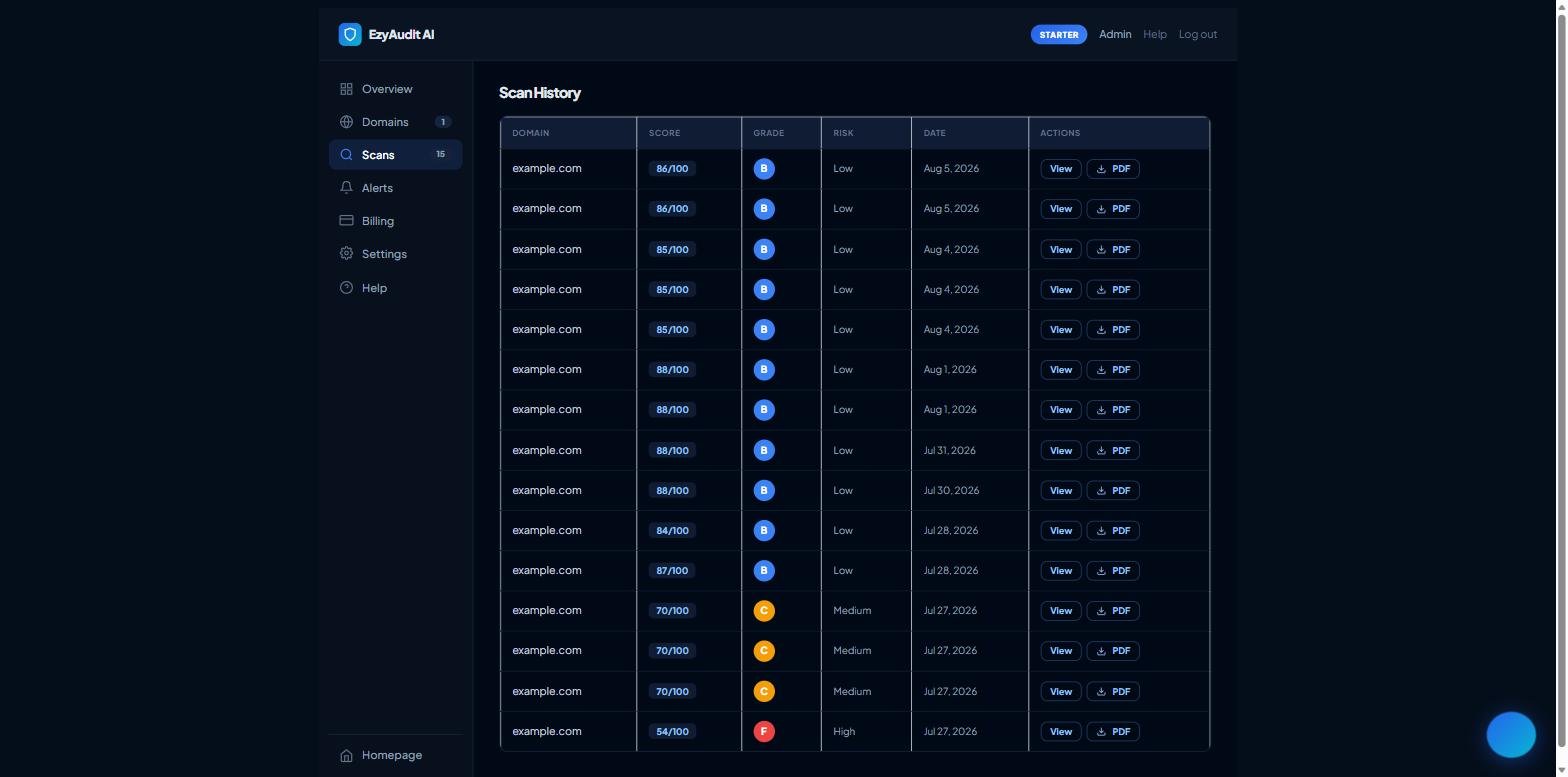
The Scan History table on the Scans tab, with View and download actions 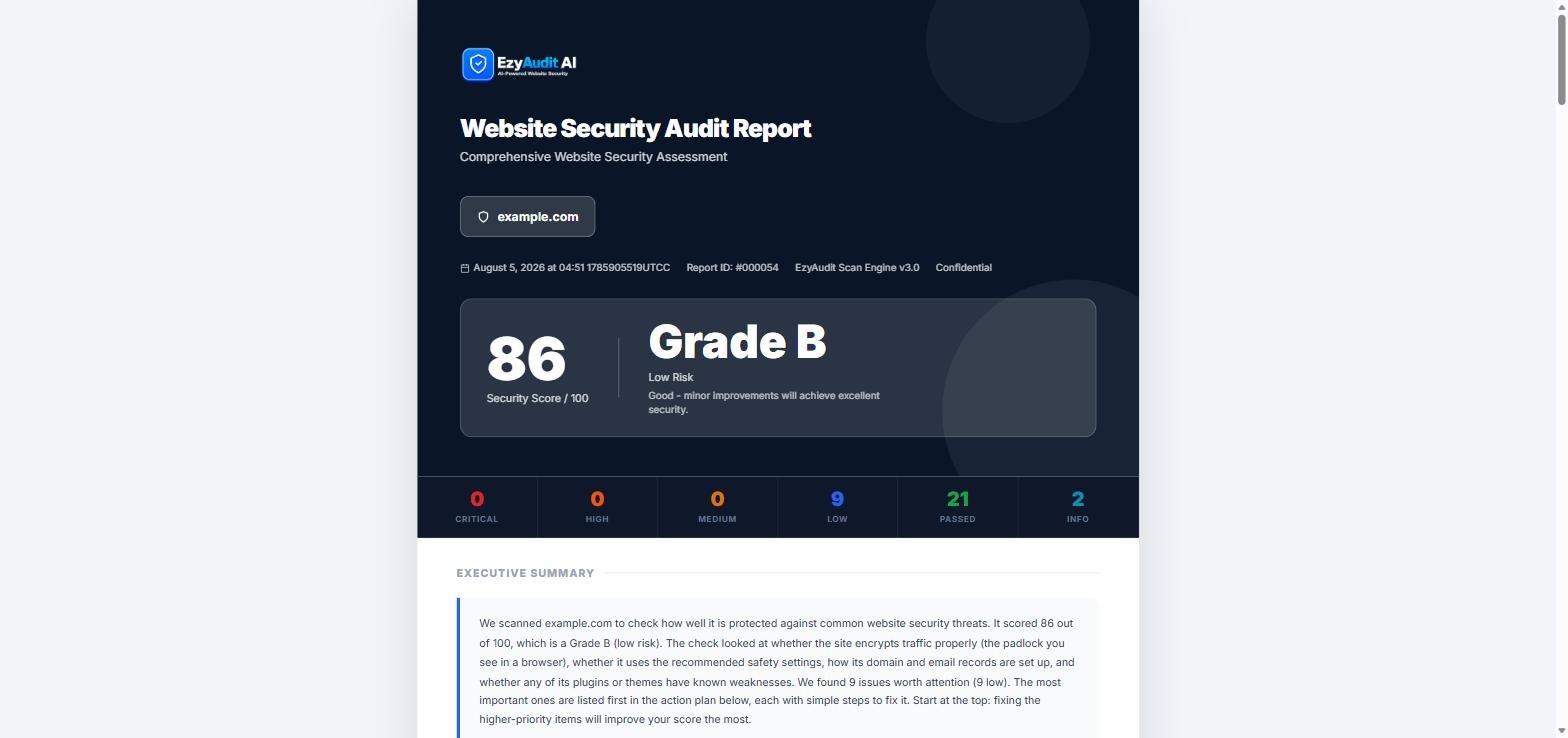
An example downloaded PDF report
Viewing and downloading reports
- Open your Dashboard and go to the Scans tab.
- Under Scan History you'll see every scan with its domain, score, grade, risk and date.
- Click View to open the full report on screen.
- To save a copy, use the download icon on the scan row. The PDF opens in a new tab, ready to save or share.
Agency plans: the PDF can carry your own logo and branding — see White-label branding.
Still stuck? Contact support and we'll help.