← All help articlesGetting Started
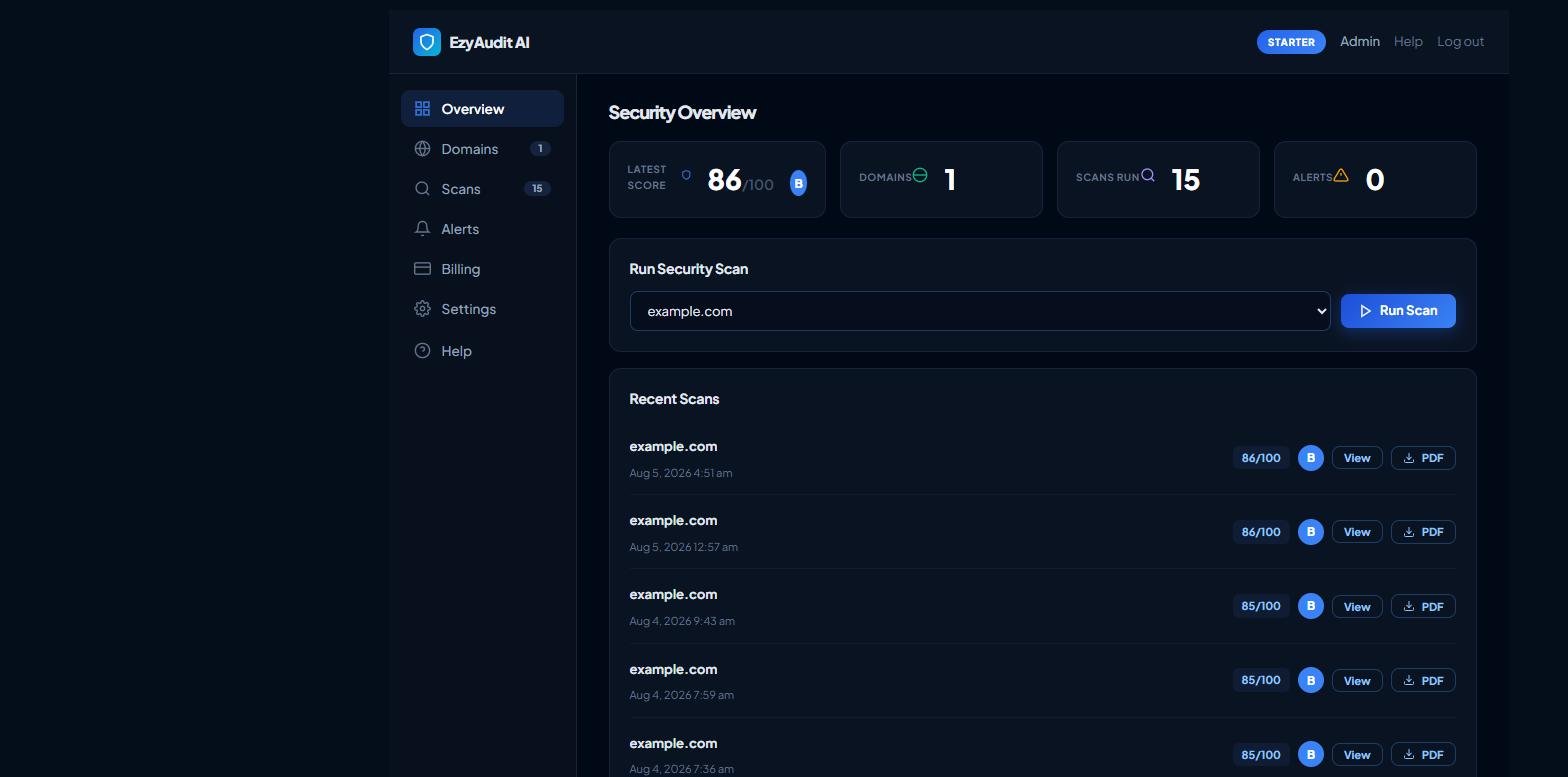
The Dashboard Overview tab, showing the Run Security Scan card
Quick start: your first security scan
EzyAudit checks a website for security issues and gives it a score out of 100 with a letter grade. Here is the fastest path to your first result.
- Sign in and open your Dashboard.
- Go to the Domains tab and add the website you want to scan (see Adding and verifying a domain).
- Verify ownership of the domain so scanning is unlocked.
- Open the Overview tab and click Run Scan next to your domain.
- When the scan finishes, your score and grade appear under Recent Scans. Open the Scans tab to view or download the full report.
You will need an active plan or scan credits to run a scan. If you don't have one yet, the Overview tab shows a View Plans button.
Still stuck? Contact support and we'll help.