How to Scan Your WordPress Site for Security Vulnerabilities in 2026
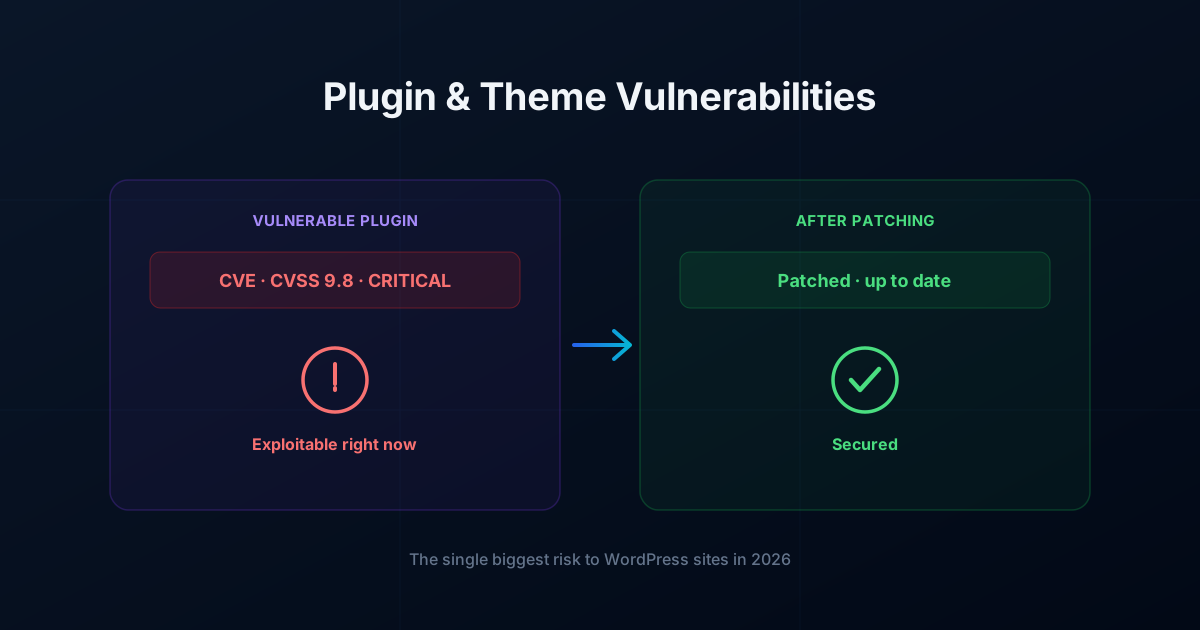
The fastest way to scan your WordPress site for security vulnerabilities is with an automated scanner, but knowing what to look for matters too. This guide shows how to scan your WordPress site for security vulnerabilities properly.
WordPress powers over 40% of the web, making it the most popular content management system in the world. Unfortunately, its massive popularity also makes it the primary target for cybercriminals. If you run a business on WordPress, protecting your digital front door is no longer optional—it is a critical part of your daily operations.
Cyber threats have evolved significantly. Automated botnets, AI-driven exploit scripts, and complex supply chain attacks target websites of all sizes. Small business websites are actually targeted more frequently than enterprise portals because attackers know smaller sites often lack dedicated IT security teams.
The good news? You do not need a degree in cybersecurity to protect your business. Running a regular WordPress security scan in 2026 is fast, easy, and can catch vulnerabilities before attackers exploit them. In this guide, we will walk you through everything you need to know about scanning your WordPress site for security risks and keeping your data safe.
Why WordPress Security Scanning is Essential in 2026
In the past, security was often treated as a “set it and forget it” task. Site owners installed a plugin, set up a basic firewall, and assumed they were protected. In 2026, that approach is a recipe for disaster.
Modern WordPress security threats move at lightning speed. When a vulnerability is discovered in a popular plugin or theme, automated bots begin probing millions of websites within hours. If your site runs an outdated version of that plugin, it can be compromised silently without you even noticing.
A comprehensive security scan helps you stay proactive by:
- Detecting Vulnerable Plugins and Themes: Over 90% of WordPress security breaches originate from outdated or poorly coded plugins and themes rather than core WordPress software.
- Finding Hidden Malware: Malicious code is rarely obvious. Hackers often inject invisible scripts that steal customer data or insert spam links for SEO fraud without altering your layout.
- Preventing Search Engine Blacklisting: If Google detects malware on your site, it will place a terrifying “This site may be hacked” warning in search results, tanking your traffic and destroying customer trust instantly.
- Protecting Sensitive Customer Data: Whether you collect contact information or process eCommerce transactions, a breach can lead to strict regulatory fines and costly legal liabilities.
Common Warning Signs Your WordPress Site Might Be Compromised
Before initiating a scan, it helps to recognize the subtle indicators that something might be wrong with your website. While some hacks completely take down a site, most modern security breaches are designed to remain quiet so the attacker can use your server resources for as long as possible.
Keep an eye out for these common red flags:
- Sudden Drop in Website Speed: Unexplained spikes in server resource usage often mean your site is secretly mining cryptocurrency or sending spam emails in the background.
- Strange Redirects: Visitors (especially mobile users) clicking on your link in search results are redirected to unknown third-party shopping or gambling websites.
- Unrecognized Admin Users: New administrator accounts appear in your WordPress dashboard that neither you nor your team created.
- Broken Layouts or Missing Features: Sudden PHP errors, missing admin panels, or white screens often indicate corrupted or tampered system files.
- Google Search Console Alerts: Security warnings from search engines or browser notifications blocking access to your domain.
Step-by-Step Guide: How to Scan Your WordPress Site for Vulnerabilities
Performing a thorough WordPress security scan in 2026 requires checking multiple layers of your application. Here is the straightforward process non-technical site owners should follow to perform a complete checkup.
Step 1: Run an External Automated Cloud Scan
The most efficient way to start is with an automated, cloud-based scanner. Traditional security plugins run heavy processes directly on your server, which can slow down your website for real visitors and even crash smaller hosting environments.
Using a lightweight cloud tool like EzyAudit AI allows you to perform deep perimeter security checks without overhead. An external scan looks at your site from an attacker’s perspective, identifying exposed sensitive files, outdated server configurations, active malware, and known plugin vulnerabilities in real time.
Step 2: Audit Your Plugins and Themes Against Known Databases
Every plugin and theme installed on your site introduces code written by third-party developers. Even if a plugin was secure when you installed it, new security flaws are discovered every single day.
To verify that your site isn’t running risky software, cross-reference your active extensions with up-to-date threat intelligence databases. You can search known risks for free using the comprehensive database at ezyaudit.ai/vulnerabilities/ to see if any plugins you currently rely on have unfixed security flaws.
If you discover a plugin with a known critical vulnerability:
- Update it immediately if a patch is available.
- Deactivate and delete it if the developer has abandoned the project without issuing a security fix.
- Replace it with a well-maintained alternative plugin.
Step 3: Verify Core WordPress File Integrity
Core WordPress files should never be edited directly. When hackers gain access to a server, they frequently inject malicious PHP code into standard files like index.php, wp-config.php, or files inside the wp-includes directory.
An effective scan compares your site’s core files against official WordPress core repositories. If any file differs from the official release version, the scanner flags it for review so you can restore the clean original file.
Step 4: Check for Malicious Redirects and Blacklist Status
Finally, your scan must check external reputation systems. Scanners check your site’s domain against security authorities like Google Safe Browsing, McAfee WebAdvisor, and Norton Safe Web.
Catching a blacklist issue early gives you time to clean your site and request a review before search engines permanently lower your organic domain rankings.
Best Practices to Secure Your WordPress Site After Scanning
Once your WordPress security scan in 2026 comes back clean, taking proactive preventive steps will keep it that way. You don’t need complicated tech setups to dramatically improve your defenses.
Follow these quick management rules:
- Enforce Strong Passwords and 2FA: Require all users with administrative or editing privileges to use complex passwords and two-factor authentication (2FA). Brute-force login attempts remain extremely common.
- Minimize Installed Extensions: Delete any plugins or themes you are not actively using. Inactive plugins still contain executable code that hackers can exploit.
- Maintain Daily Automated Backups: Secure off-site backups are your ultimate safety net. If a clean restore point exists, recovering from a security incident takes minutes instead of days.
- Schedule Automated Continuous Scanning: One-off scans only provide a snapshot in time. Setting up continuous background monitoring with a platform like EzyAudit AI ensures you receive an immediate alert the moment a vulnerability or malware signature appears.
Keep Your Website Safe Without the Headache
Securing a WordPress site doesn’t have to be overwhelming or complex. By prioritizing routine vulnerability checks, updating your software promptly, and utilizing smart cloud-based tools, you can protect your business reputation and keep customer data safe from modern cyber threats.
Don’t wait for a security warning to disrupt your business. Run a quick, non-intrusive scan with EzyAudit AI today to discover hidden security vulnerabilities, verify plugin health, and keep your WordPress site completely secure in 2026.
How to scan your WordPress site for security vulnerabilities
Make it a habit to scan your WordPress site for security vulnerabilities regularly, not just once. The official WordPress hardening guide pairs well with routine scanning. Run your first scan with EzyAudit AI to find issues in minutes.